How to display a Canva menu on a TV
To display a Canva menu on a TV, export the finished design as a still image or video, then play it using a compatible TV USB input or an external media player. Check your equipment's supported formats before choosing an export. A USB port alone does not guarantee media playback.
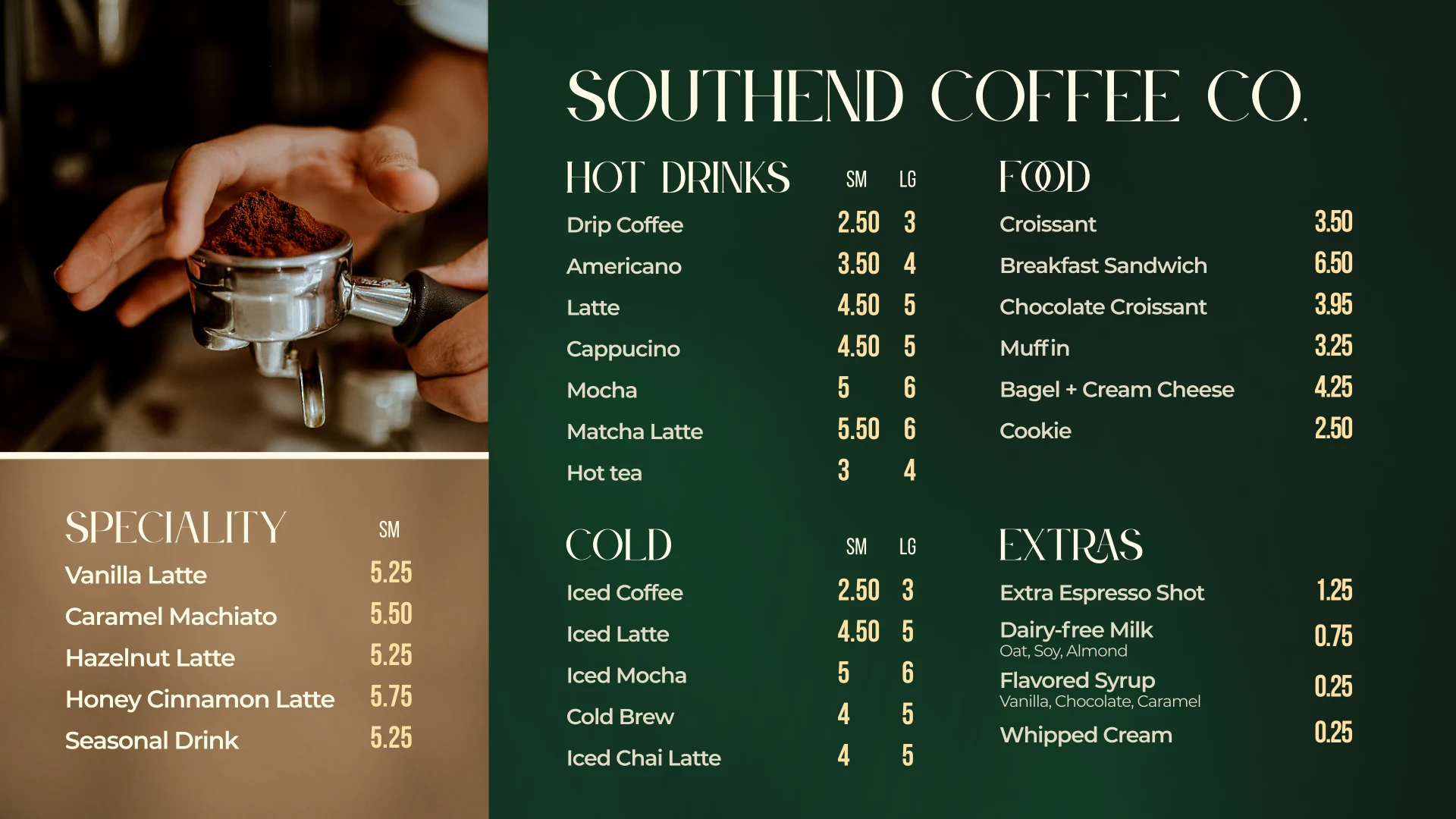
1. Match the design to your screen
Our café and taco TV menu templates use a landscape 16:9 layout at 3840 × 2160 pixels. This is the shape of a standard widescreen TV. A portrait-mounted display needs a different layout. Keep the original proportions rather than stretching the menu to fit.
2. Edit a copy in Canva
After purchasing, open the PDF from your Etsy order and follow its template link. Choose “Use template” to create your copy. Replace the example items, prices, and photographs with your own. These collections use elements available in Canva Free.
Read every price and item description before export. Check the smallest text from the distance where customers will order; a design that looks readable on a laptop may be too small across a counter.
3. Choose a still image or animated video
| Format | Good fit | Check before use |
|---|---|---|
| PNG or JPG image | A steady menu customers can read at their own pace | Your player supports the image format and displays it without unwanted slideshow effects. |
| MP4 video | Animated menus or promotional screens | Your player supports the exported resolution and video encoding, and can repeat the clip. |
In Canva's download options, choose the pages and file type you need. A still image will not preserve animation. For video, review the exported file before transferring it. Available export settings can vary; check the resulting file's dimensions instead of assuming the export matches the design size.
4. Transfer and play the file
If your TV supports media playback from USB, copy the exported file to a USB drive and select it through the TV's media menu. Follow the TV manufacturer's instructions for compatible drive formats, image types, and video encoding.
If USB playback is unavailable or unreliable, use an HDMI media player that supports your file. The TV's display resolution and the player's decoding capability are separate: a 4K screen does not guarantee that its built-in USB player handles every 4K video.
5. Test before customers arrive
- Check that the picture fills the screen without clipping menu items or prices.
- Confirm animation repeats if you want continuous playback.
- Look for player controls, slideshow transitions, sleep timers, or screen savers that interrupt the menu.
- Restart the equipment to learn whether playback resumes automatically.
- Keep a backup still image available if video playback fails.
Choose a menu for your business
The coffee shop TV menu collection includes three full menu boards and five promotional screens. The taco food truck collection includes four menu boards and five promotional screens. Both support Canva Free editing and animated or still-image export.
These purchases provide design templates. They do not include a TV, media player, or remote digital-signage management service. Choose your playback equipment separately.
Need help with a template?
Message Evan Olsen Studios on Etsy for help with your purchase or template link. For device-specific playback problems, consult the TV or media-player manufacturer.